Starts with your IDE
Choose which apps mean “I’m working”: PhpStorm, GoLand, PyCharm, IntelliJ IDEA, Xcode, VS Code, Terminal, or others you add. When one opens, the timer starts and a small panel asks what you are working on.

TickTrail · for Mac
TickTrail is a time tracker for developers. A menu-bar timer starts when your IDE opens, and the gaps in your day are filled in from your GitLab and GitHub commits. At the end of the day you look it over, fix what needs fixing and accept it.
Auto startThe timer starts when one of your work apps opens
10 minOf no keyboard or mouse input pauses the timer; you can change it
GitLab + GitHubgitlab.com, self-hosted GitLab and GitHub, with your own token
0 serversNo TickTrail account or cloud; macOS 14 or later
How it works
The timer records the time you spend in the apps you chose. For the rest of your working hours, TickTrail looks at what you pushed, reviewed and commented on, and fills those gaps from it. Time the timer recorded and entries you made yourself are never changed.
Choose which apps mean “I’m working”: PhpStorm, GoLand, PyCharm, IntelliJ IDEA, Xcode, VS Code, Terminal, or others you add. When one opens, the timer starts and a small panel asks what you are working on.
After 10 minutes without keyboard or mouse input the timer pauses and counts back to your last input. It stops when the last tracked app quits. The menu bar shows the elapsed time and the issue.
Choose from issues assigned to you or touched recently, across all your connected accounts. Search every project on GitLab and GitHub, create a new issue from the picker, or keep going unassigned and attach an issue later.
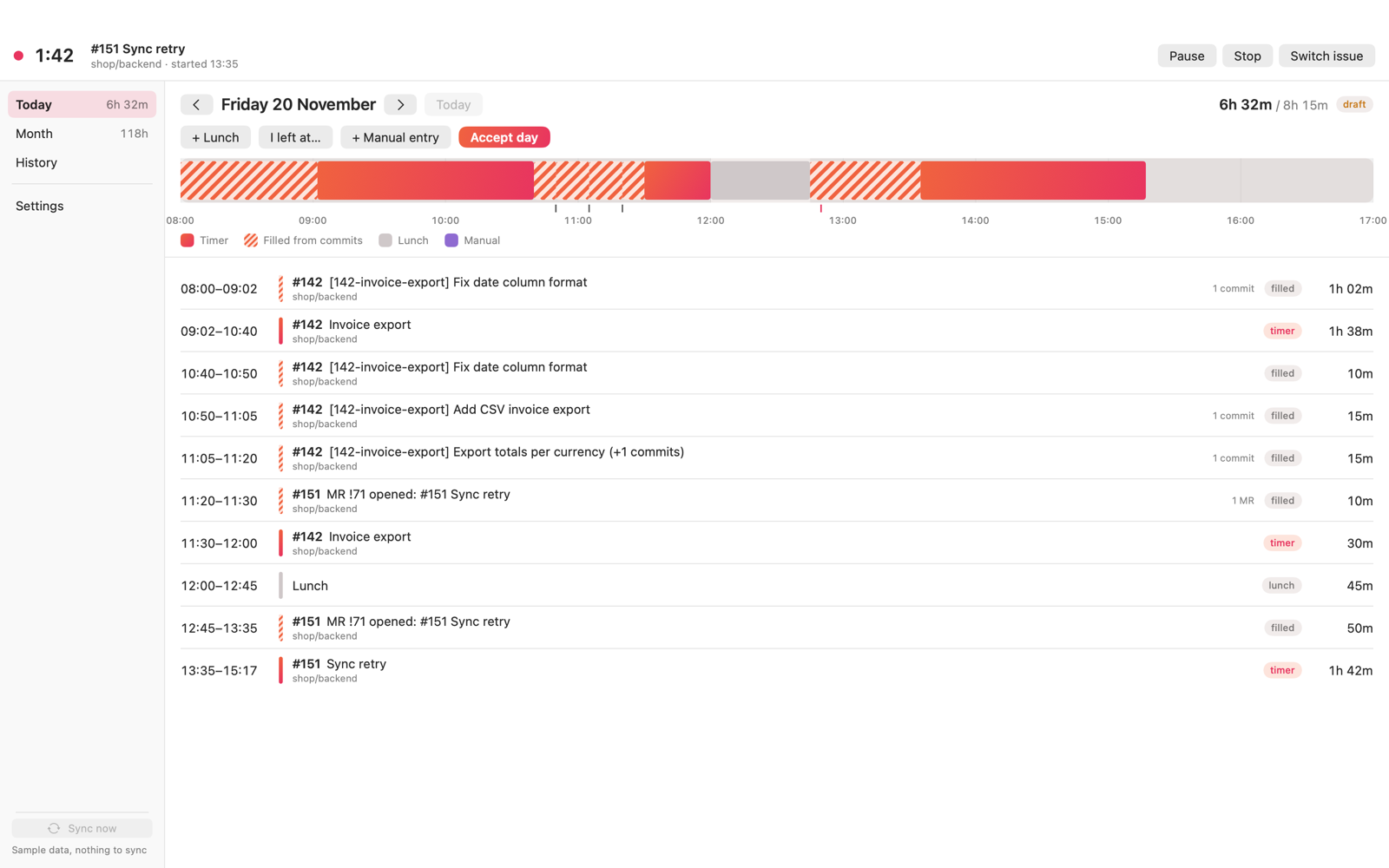
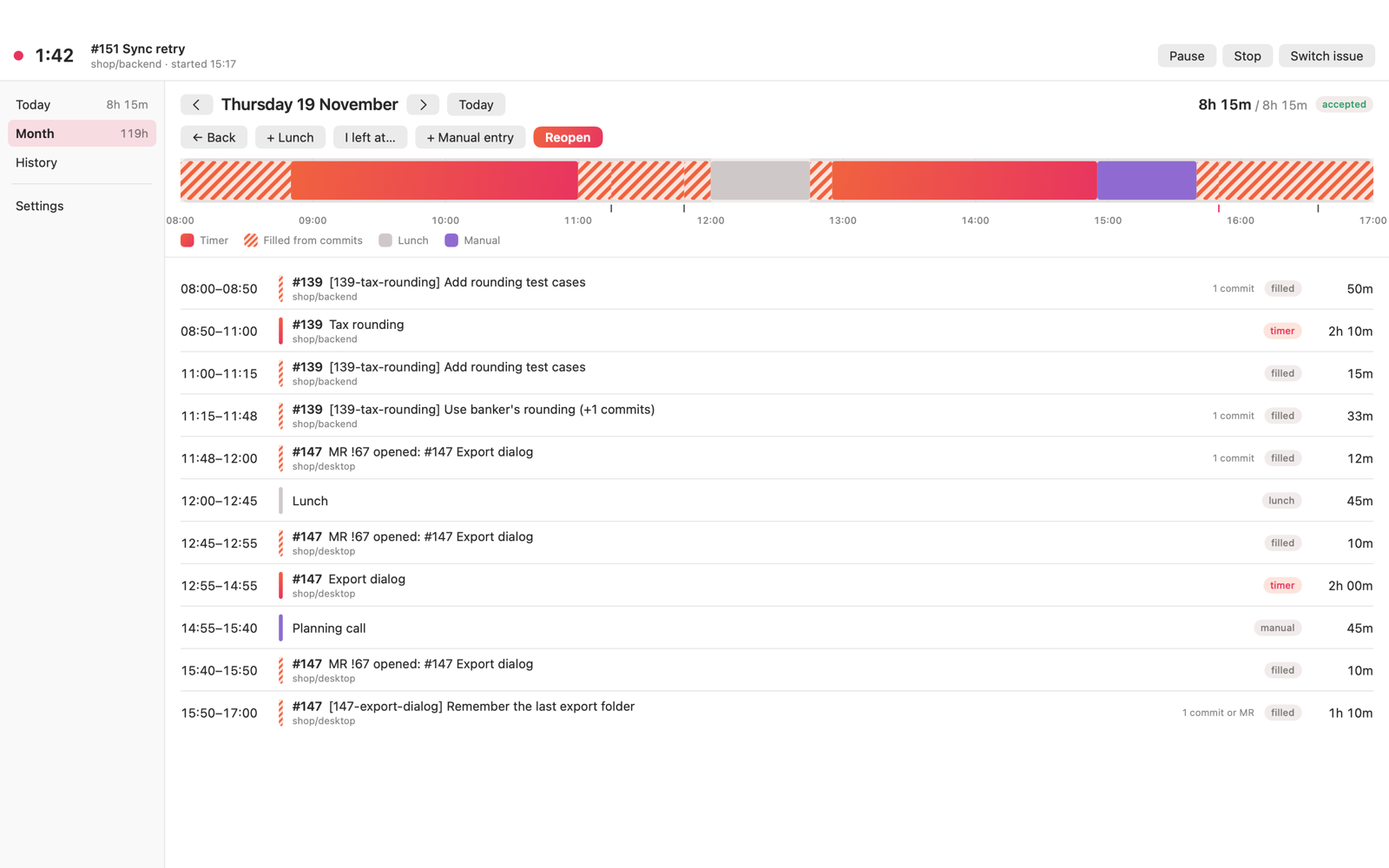
Pushes, merge requests and pull requests, comments and issue events are synced from GitLab and GitHub. Gaps inside your working hours are filled from that activity, shown striped so you can tell them apart.
A one-day strip shows timer blocks, filled blocks, lunch and manual entries. Add lunch, mark when you left, add a manual entry for the call or the whiteboard session, then accept the day.
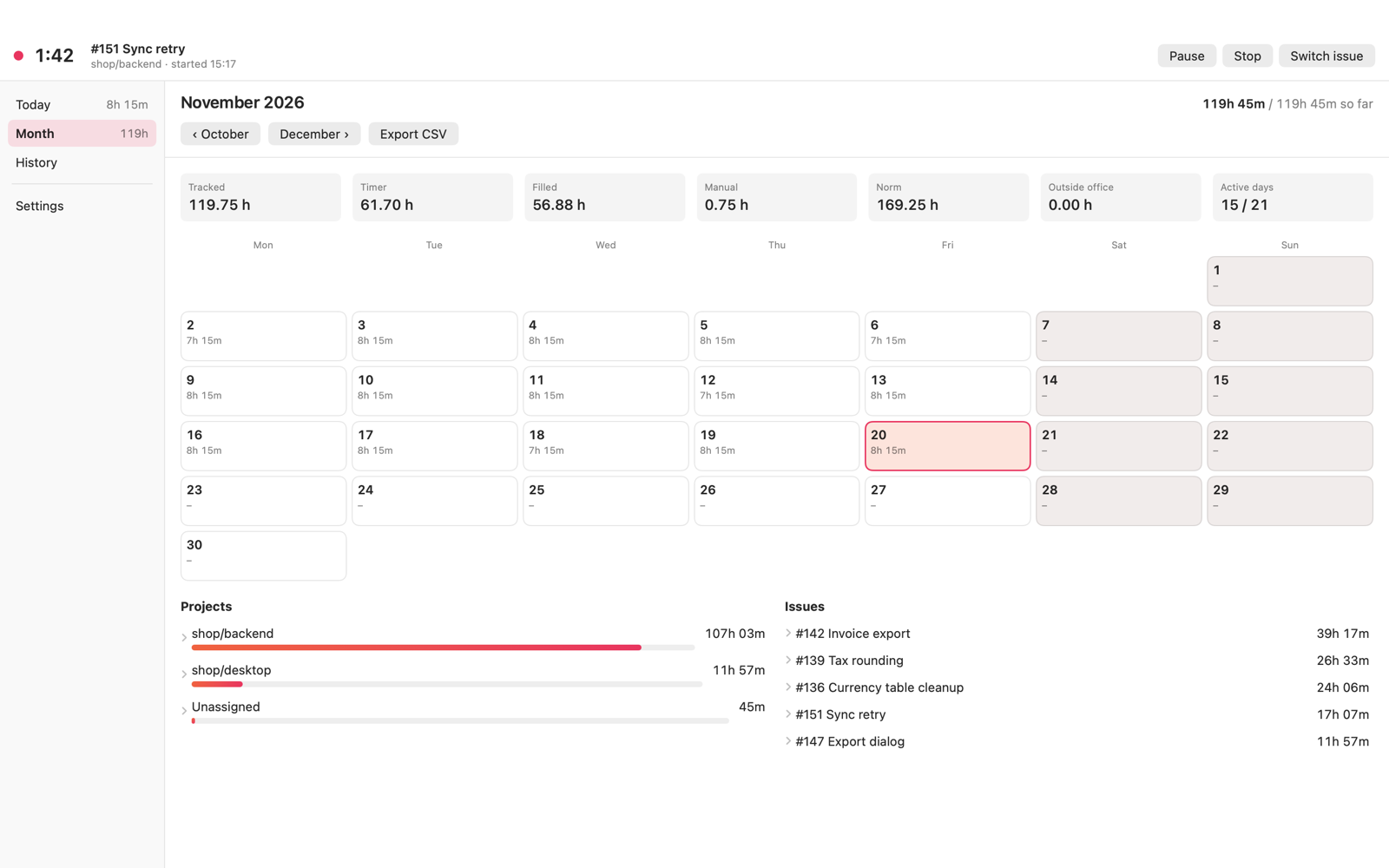
See the month with totals per day, per project and per issue, and export it as CSV for your timesheet, invoice or spreadsheet.
Support
Questions, bug reports and ideas are welcome by email at rauno@raunoa.com. Please mention your macOS version and whether you use gitlab.com, a self-hosted GitLab or GitHub. If the question is about a particular day, a CSV export of that month helps.
Create a personal access token in your account on gitlab.com, your own GitLab server or GitHub, and add it in TickTrail. You can connect several accounts. The token is stored in the macOS Keychain and is only sent to the server it belongs to.
The ones you choose. PhpStorm, GoLand, PyCharm, IntelliJ IDEA, Xcode, VS Code and Terminal are ready to pick, and you can add any other app. When one of them opens, the timer starts and asks what you are working on.
Keep the timer running as unassigned and attach an issue later. If the issue does not exist yet, you can create it from the picker without leaving TickTrail.
After 10 minutes without keyboard or mouse input, TickTrail pauses and counts the time back to your last input, so the break is not recorded as work. You can change the 10 minutes in the settings. The timer stops when the last of your tracked apps quits.
They are filled in from your GitLab and GitHub activity: pushes, merge requests and pull requests, comments and issue events. Only gaps inside your working hours are filled. Time recorded by the timer and entries you added yourself are never changed by the fill.
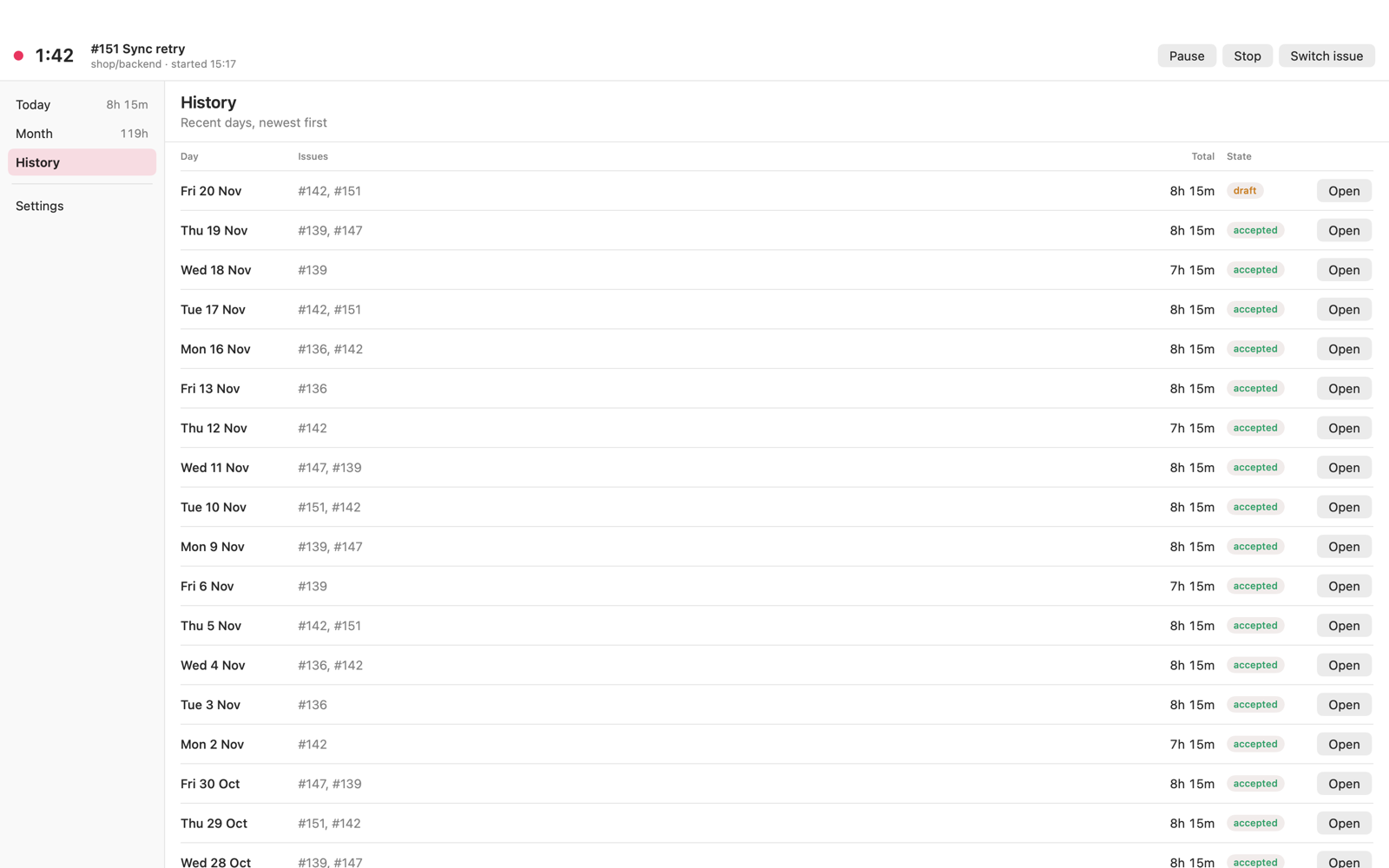
Open the day and fix it before you accept it: add lunch, mark when you left, or add a manual entry for meetings and other work away from the computer.
The month view shows totals per day, per project and per issue, and exports them as CSV. Check the hours before you use them for an invoice or payroll; filled blocks are based on your activity, not on a running timer.
No. To run the timer it only checks which of your chosen apps are open or in front, and how long it has been since your last keyboard or mouse input. It does not record keystrokes, window titles, URLs, file names or screenshots. See the Privacy Policy.
No. There is no TickTrail account or server. Your time data stays on your Mac, and the app only talks to the GitLab and GitHub servers you connect.